
Put your menu on the TV in 6 steps
All you need is the remote — no USB stick or computer. It takes about 10 minutes. The orange outline shows what to select with the remote.
Before you start
- An Android TVA TV with Google TV or Android TV built in. For other TVs, plug a Chromecast with Google TV or an Android set-top box into HDMI.
- InternetWi-Fi or Ethernet. A wired connection is the most reliable.
- Your 6-digit store codeThe store code from menuboda. Don't have one yet? Get in touch with us.
- 1
Install the Downloader app
From the TV home screen, open the Play Store (or Search), find Downloader and install it. It's the free app by AFTVnews with an orange arrow icon.
DownloaderSearch↓DownloaderAFTVnews · FreeInstallSearching for and installing Downloader in the Play Store - 2
Allow Downloader to install apps
Go to Settings → Apps → Security & restrictions → Unknown sources and turn on Downloader.
💡 Can't find it (Chromecast / Google TV)? Go to Settings → System → About and press Android TV OS build 7 times to enable developer mode, then look again.
Settings› Apps› Security & restrictionsUnknown sourcesDownloaderChromeFilesTurning on Downloader under Unknown sources - 3
Download menuboda TV
Open Downloader, type
menuboda.com/tvin the address box, then press Go → Install.💡 If you see an "unrecognized app" warning, choose "Install anyway".
HomeBrowserFilesSettingsEnter a URL or search termmenuboda.com/tvGo menuboda TVDo you want to install this application?CancelInstall
Typing menuboda.com/tv into Downloader and installing - 4
Enter your store code
Open menuboda TV and you'll see this screen. Type your 6-digit store code with the number buttons on the remote (or the on-screen keypad) and press OK.
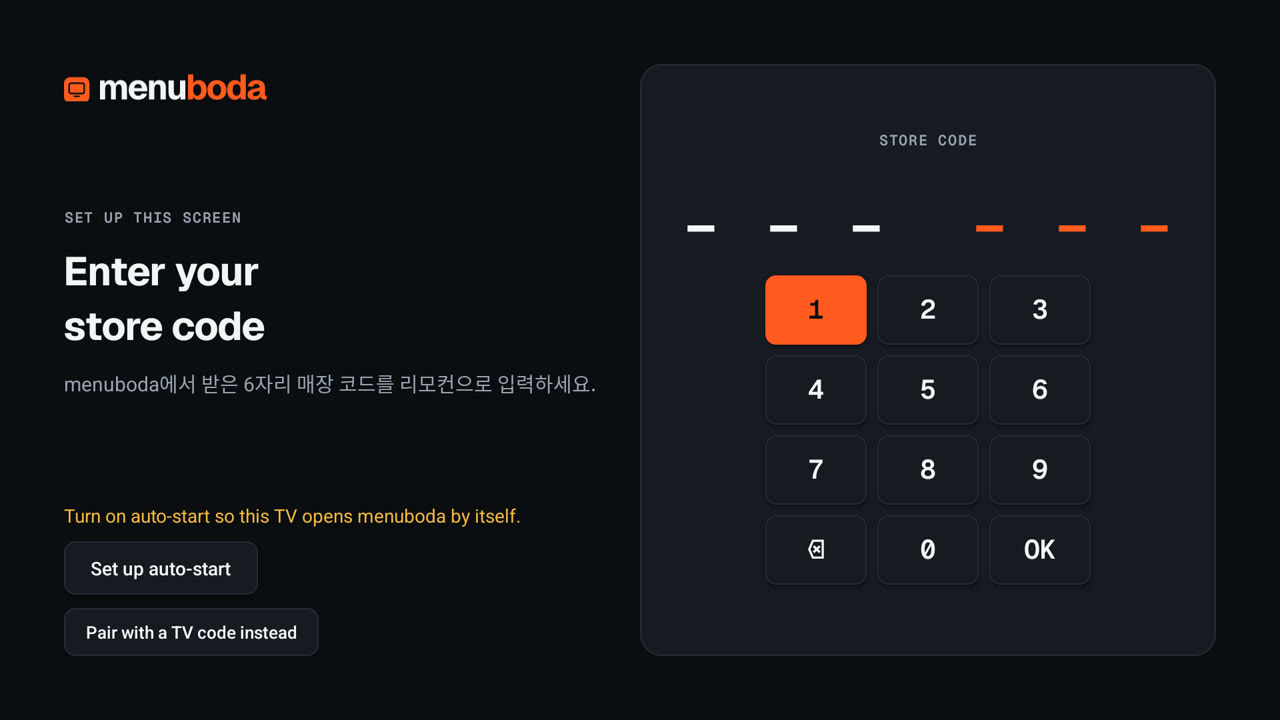
menuboda TV store code screen - 5
Turn on auto-start
Press Set up auto-start in the app, or go to Settings → System → Accessibility, choose menuboda auto-start at the bottom (shown as "menuboda 자동 실행" on Korean TVs) → Enable → OK. This brings your menu back by itself after a power cut or restart.
💡 Android shows a standard warning that the service "can collect all the text you type". menuboda only uses the signal that the screen changed — it never reads any content. Press Back twice to return to the app.
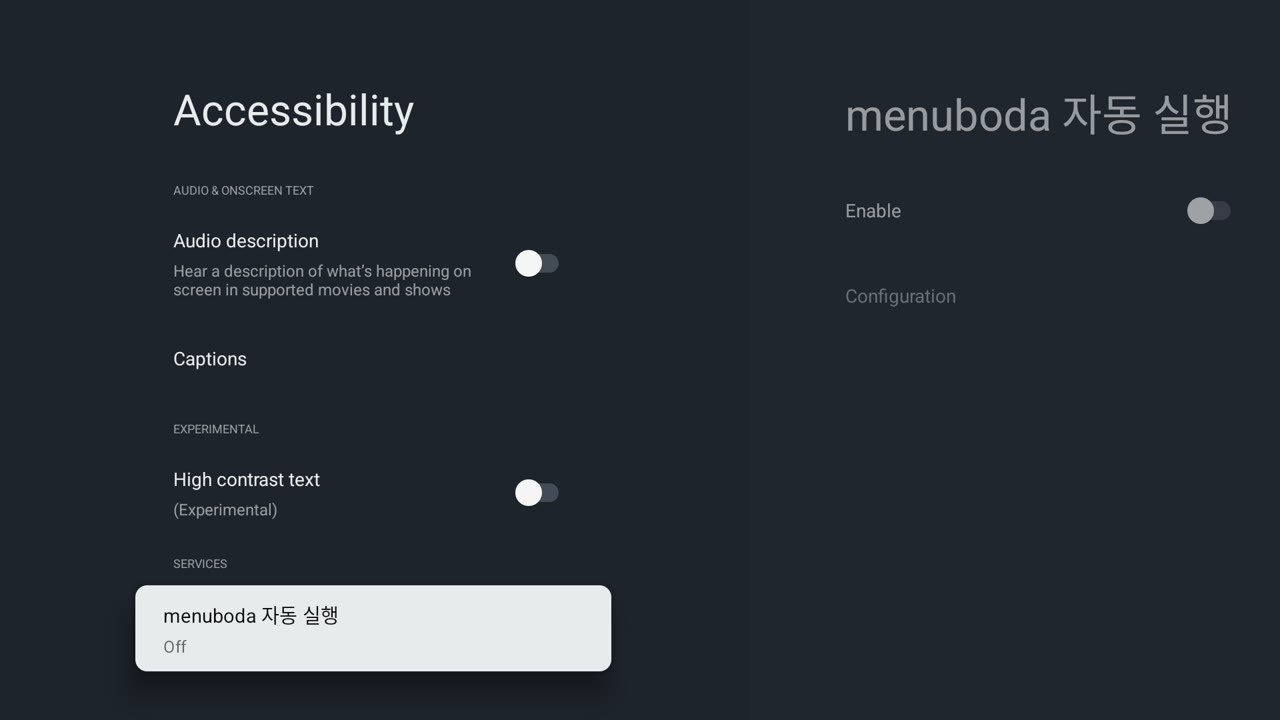
Choosing menuboda auto-start in Accessibility settings 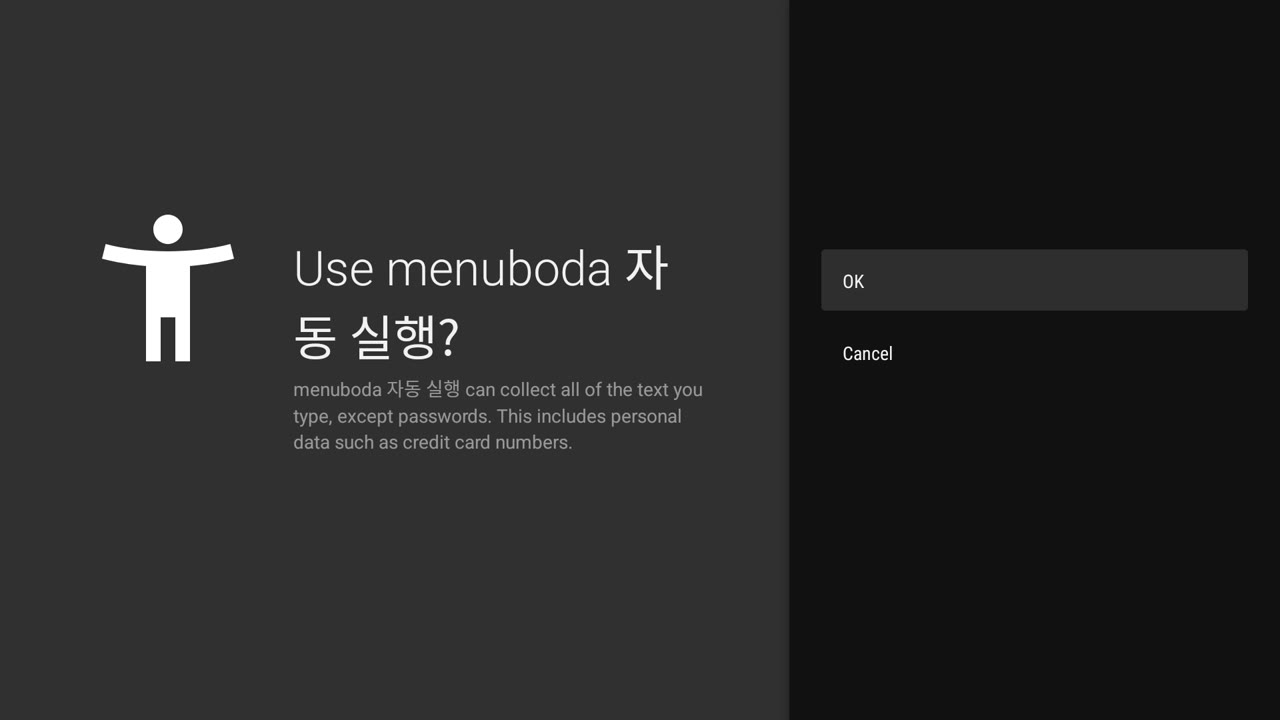
Confirming auto-start - 6
Wait for approval — you're done
When you see Waiting for approval, installation is complete. Playback starts as soon as menuboda approves the TV. Just leave the TV on.
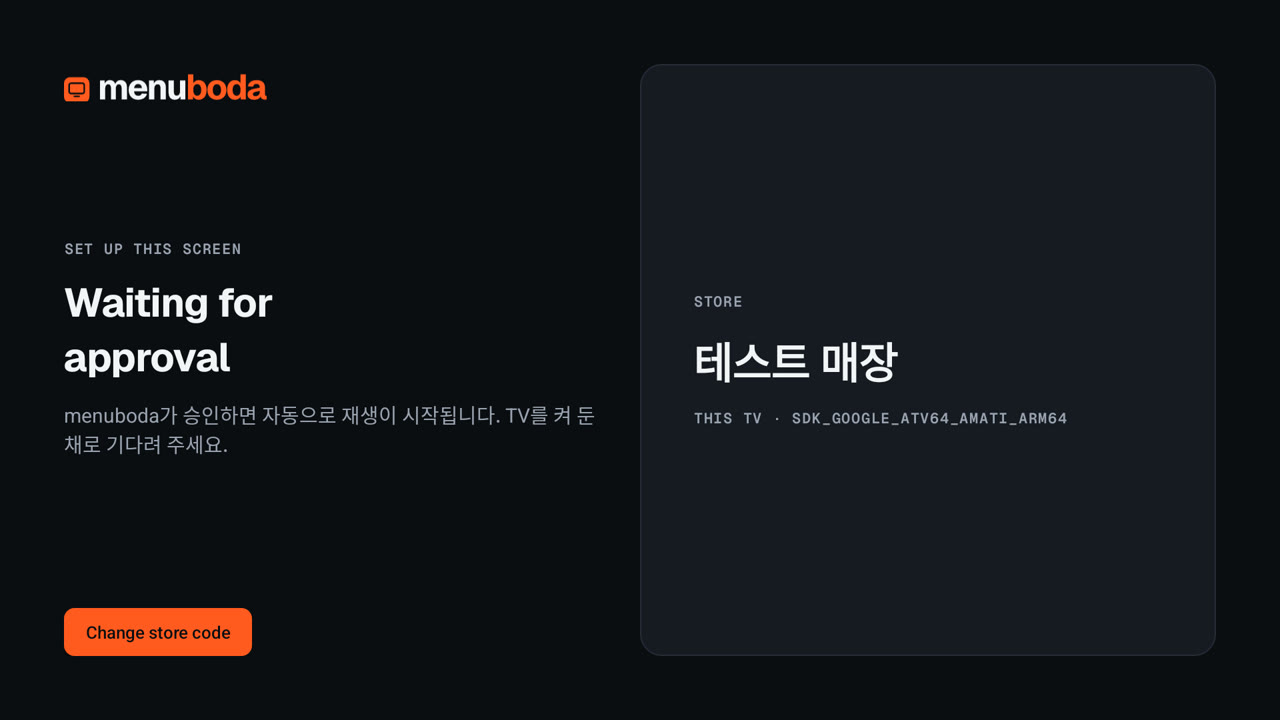
Waiting for approval screen
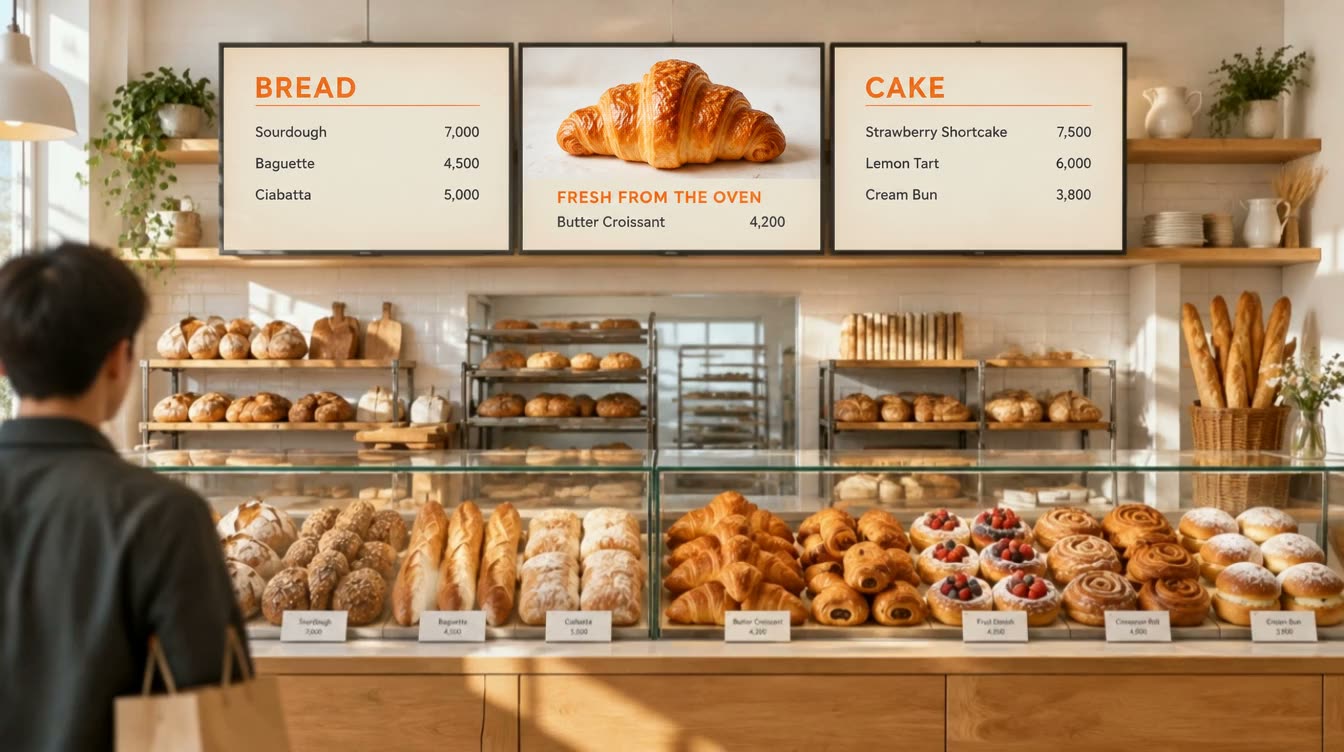
After approval, your screens go live
For reliable 24/7 playback
- Turn off the TV's own power saving and auto power-off (e.g. "turn off after 4 hours"). It's the most common reason screens go dark during business hours.
- Set the Google TV screensaver (Ambient mode) to Off.
- Use wired Ethernet if you can. Screens keep playing from stored content if the connection drops, but updates need a connection.
- On OLED TVs, a static image left on for a long time can cause burn-in. Mix videos in between menu boards.
- Samsung and LG smart TVs don't run Android, so the app can't be installed on them directly. Connect a Chromecast with Google TV or an Android box via HDMI.